What's New in SwitchBoard 1.13
SwitchBoard 1.13 brings AI-powered call intelligence to your phone system. After a call ends, SwitchBoard can now automatically transcribe the conversation, generate a summary, and analyze the emotional tone — giving your team instant insights without lifting a finger.
Here's everything that's new.
Call Summarization: Get the Key Points in Seconds
No more listening to entire recordings to find out what a call was about. SwitchBoard can now generate concise summaries of any call that has been transcribed.
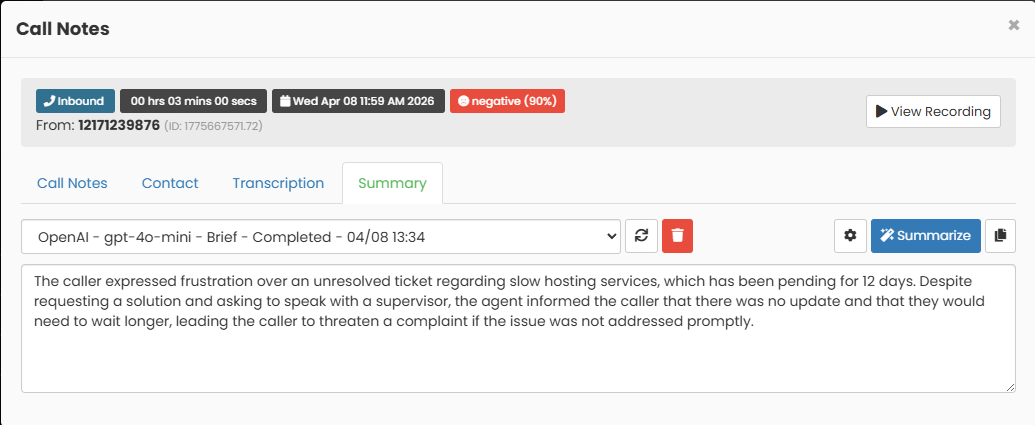
From the call record window, click the Summary tab and hit Summarize to get a brief overview of the conversation. Need more detail? Switch to Detailed mode for a structured summary with key points, action items, decisions made, and follow-ups required.
Summaries are generated by an AI provider of your choice — OpenAI, Anthropic, or even a local model running on your own server.
Highlights:
One-click call summaries from the Summary tab in the call record window
Choose between Brief (1-2 sentences) or Detailed (structured with action items)
Copy summaries to clipboard with one click
Sentiment Analysis: Evaluate customer emotions during calls
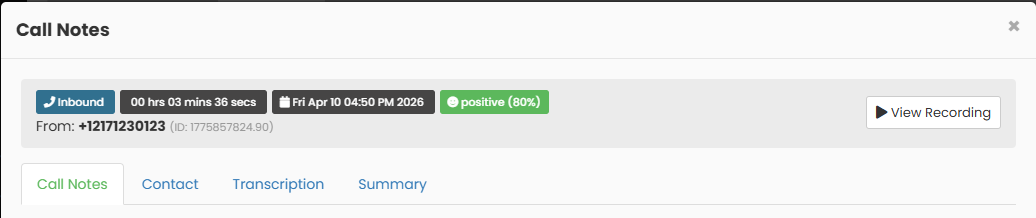
Every call has an emotional tone. SwitchBoard can now automatically detect whether a call was positive, neutral, or negative, along with a confidence score and a brief explanation of why.
Sentiment results appear as a colored badge right in the call record header — a green smiley for positive, gray for neutral, and red for negative. You can also see sentiment at a glance in the call records list, where each row shows a sentiment icon.
Highlights:
Sentiment badge displayed in the call record header alongside call details
Sentiment column in the call records list for quick scanning
Hover over the badge to see the AI's reasoning
Click Analyze Sentiment to manually trigger analysis on any call with a transcription
Works with the same AI providers used for summarization
Automatic Transcription: Hands-Free, End-to-End
When enabled, SwitchBoard can now automatically transcribe calls as soon as they end — no manual action needed. Once the transcription completes, summarization and sentiment analysis can kick in automatically too, creating a fully hands-free intelligence pipeline.
The full automation chain:
A call ends and the recording is saved
SwitchBoard automatically creates a transcription job
When the transcription completes, a summary is generated
Sentiment analysis runs on the same transcription
Each step in the chain can be enabled or disabled independently by your administrator.
Highlights:
Automatic transcription for calls that meet configurable criteria (duration, call type)
Configurable minimum and maximum call duration for auto-transcription
Intelligence Providers: Bring Your Own AI
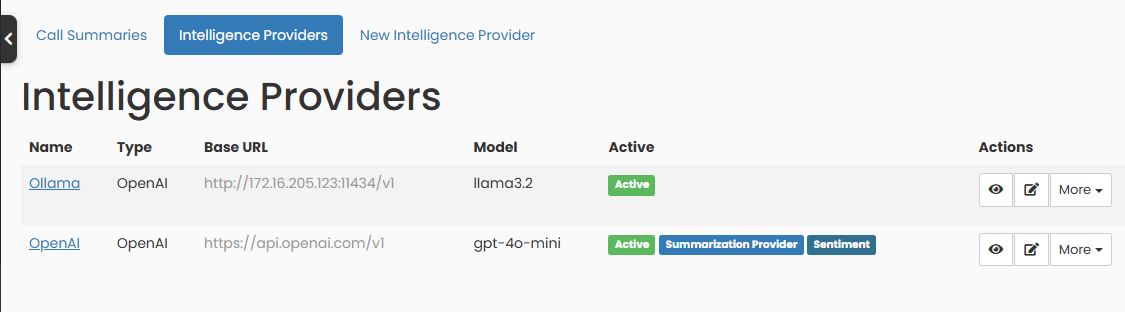
SwitchBoard's intelligence features are powered by Intelligence Providers — connections to AI services that handle the actual summarization and sentiment analysis. You can configure one or more providers and choose which one to use as the default for each feature.
Supported providers include:
OpenAI (GPT-4o, GPT-4o-mini) — fast cloud-based processing
Ollama and other OpenAI-compatible services — run AI models locally on your own hardware
Each provider can have its own model, API key, and custom prompts. If you've already configured OpenAI in the API Integrations page, SwitchBoard can use that API key automatically — no need to enter it again.
Highlights:
Manage providers from the Intelligence Providers page under Admin
Set separate default providers for summarization and sentiment analysis
Customize the AI prompts used for summarization and sentiment under Advanced Configuration
Test provider connectivity before saving
What's Changed in the Call Record Window
The call record window has been updated to support the new intelligence features:
New Summary tab — view and generate call summaries (appears when summarization is enabled)
Sentiment badge in the header — shows the call's emotional tone right next to the call info badges (appears when sentiment analysis is enabled)
Smarter Summarize button — disabled with a "Transcription required" message until a completed transcription is available, then automatically enables
Tabs for Transcription, Summary, and Sentiment only appear when their respective features are enabled
Upgrading
To get started:
Ask your administrator to enable summarization and/or sentiment analysis
Configure an Intelligence Provider (e.g., OpenAI with your API key)
Start generating summaries and sentiment analysis from the call record window
For automatic processing, your administrator can enable auto-transcription, auto-summarization, and auto-sentiment analysis from the system settings.
If you have any questions or run into issues, contact your system administrator.
We're always working to make SwitchBoard better. If you have feedback or feature requests, we'd love to hear from you!